What the validator is telling you
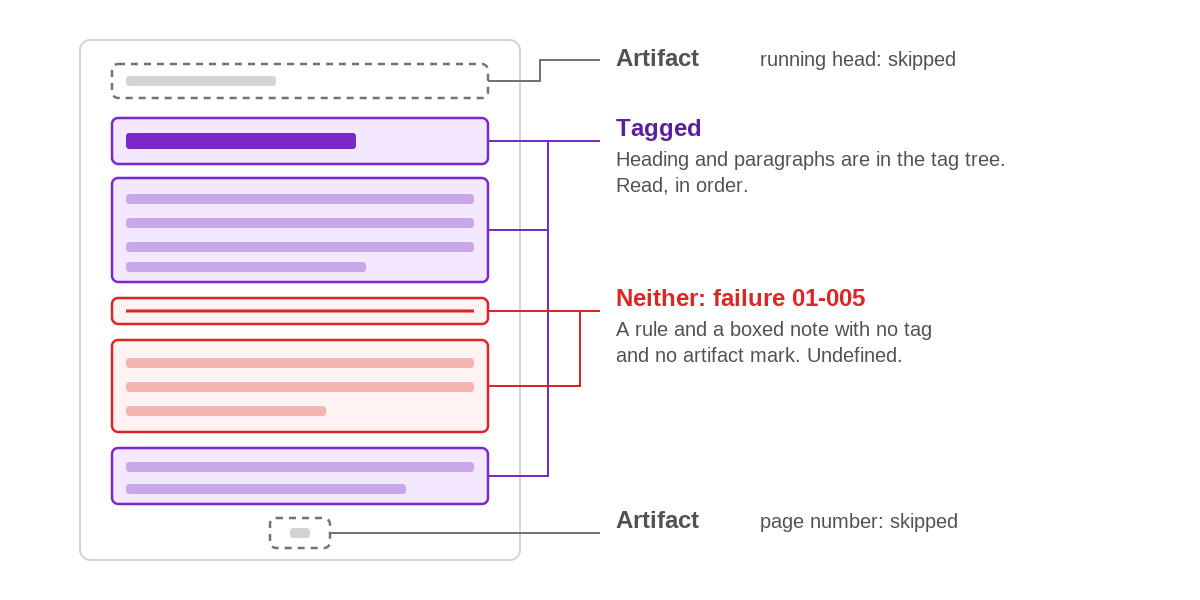
PDF/UA-1 clause 7.1 puts every mark on a page into one of two groups. Real content is part of the document's meaning and must be in the tag tree. Artifacts are everything else: running heads, page numbers, rules, backgrounds. They must be explicitly marked as artifacts so that assistive technology can skip them.
This failure means something on the page is in neither group. It is usually the highest count in a validation report, because every stray line and every untagged text run is reported separately.
What a reader experiences
It depends on what was left unmarked, and that is the problem. If it is a decorative rule, most screen readers ignore it and nothing is lost. If it is a paragraph, a caption or a boxed note, the reader never hears it, and nothing tells them it was there.
Why it happens
- The file is not tagged at all. Every item on every page fails. Check this first: a count in the thousands usually means there is no tag tree.
- Decoration drawn on the page in the layout, such as rules, tints and ornaments, with no artifact setting.
- Content added after tagging, for example a stamp, an inserted page, or an edit made in a PDF editor.
- Partial auto-tagging that recognised the main text and missed footers, side notes or text inside graphics.
How to confirm it
In Acrobat, open the Tags panel. If it says "No Tags available", the file is untagged and needs full remediation. If tags exist, open the panel's options menu and choose "Find", select "Unmarked Content", and search the document. Acrobat highlights each unmarked item in turn.
How to fix it
For each item the search finds, decide which group it belongs to.
It is real content
In the Find dialog, choose "Tag Element" and pick the right type, such as Paragraph or Figure. Then check the Tags panel: the new tag is added at the selected position, which may not be where it belongs in the reading order. Drag it into place.
It is decoration or page furniture
Open the reading order tool, draw a box around the item and choose "Background/Artifact". For running heads, footers and page numbers you can be more specific: find the item in the Content panel, right-click it, choose "Create Artifact" and set the type to Pagination.
At the source
- InDesign: put repeating page furniture on parent pages, which export as artifacts. For decoration on the page itself, open Object Export Options, go to Tagged PDF and apply the Artifact tag.
- Word: mark decorative images as decorative, and keep real content out of headers and footers, which export as artifacts.
W3C's technique PDF4 covers marking decorative content as artifacts.
Two neighbours
- 01-003, "Content marked as Artifact is present inside tagged content", and 01-004, its reverse, mean the two groups have been nested inside each other.
- 01-006, "Type and attributes of a structure element are not semantically appropriate", needs human testing. Tagging a real heading as an artifact clears 01-005 and hides the heading. Getting the count to zero is not the goal. Putting each item in the right group is.
How PDFxt handles it
PDFxt tags the whole document, so real content enters the tag tree and page furniture is marked as artifacts in the same pass. A reviewer can change either decision in the editor, and the exported file is validated.
Related
- Multi-column PDFs: why screen readers jump the gutter, for placing newly tagged content in the right order.
- veraPDF PDF/UA-1 profile, rules 7.1-1 to 7.1-3.